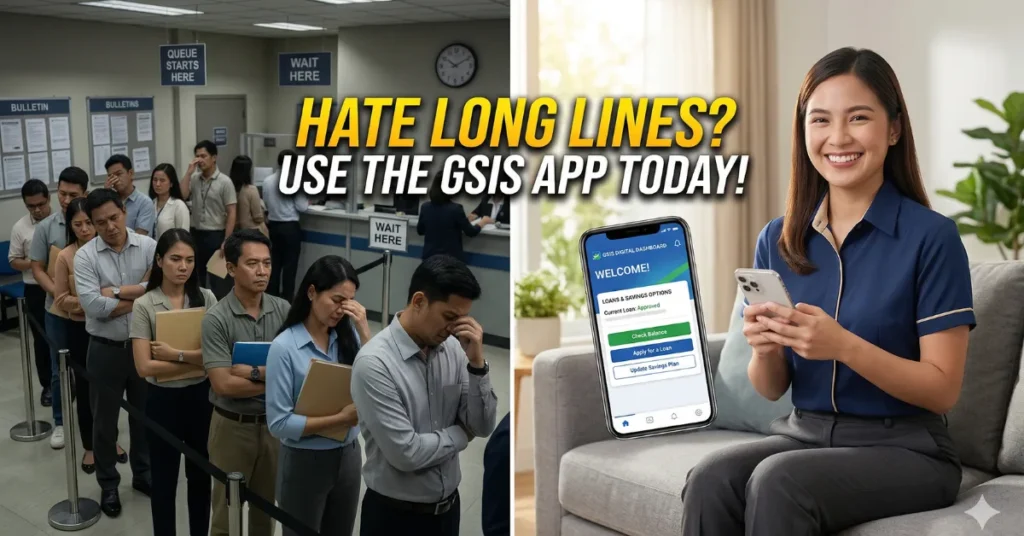
If you are a public school teacher, a dedicated nurse, or a local government employee, you already know the struggle. Needing to apply for an emergency loan or checking your monthly premium contributions usually means filing a leave of absence, traveling to the nearest regional office, and sitting in a crowded waiting area for half the day. For busy public servants, this outdated process is incredibly exhausting and takes away valuable time from your family and your duties.
You no longer have to endure those endless queues. The Government Service Insurance System has fully upgraded its digital infrastructure to bring its services directly to your smartphone. By utilizing their official mobile application, you can view your records, apply for loans, and track your retirement claims from the comfort of your living room. Here is exactly how to set up your digital account and skip the physical branch visits forever.
GSIS vs SSS Loan: Which Gives You Bigger Cash in 2026?
Contents
Why You Need the Digital App Today
The official mobile application, known as GSIS Touch, is the ultimate financial dashboard for every active member and pensioner. The Government Service Insurance System developed this platform to eliminate fraudulent fixers and speed up transaction times.
Instead of waiting weeks for a loan approval through a physical liaison officer, applying through the app can get your funds credited to your UMID or eCard within a few working days. You can also instantly generate tentative computations for your retirement or separation benefits, allowing you to plan your financial future without needing a face-to-face consultation.
PhilHealth MDR 2026: Get Your Member Data Record Online in 4 Easy Steps
4 Steps to Set Up Your Digital Account
To access your records securely, you need your smartphone and an active internet connection. Follow these four simple steps to activate your digital dashboard today.
1. Download the GSIS Touch Application
Open your Google Play Store or Apple App Store and search for “GSIS Touch.” Ensure that you are downloading the official application published directly by the Government Service Insurance System to protect your sensitive data. Do not download APK files from random websites, as these can easily compromise your financial accounts.
2. Register Using Your BP Number
Once the app is installed, open it and tap on the “Register” button. The system will ask you to input your Business Partner (BP) Number. This is the unique 10-digit identification number assigned to you when you first entered government service. If you do not have your BP Number memorized, you can find it printed on your physical UMID card or ask your agency’s designated Agency Authorized Officer (AAO).
Philippines Minimum Wage 2026: NCR & Provincial Rates
3. Verify Your Identity via OTP
After entering your BP Number, the system will need to confirm that you are the legitimate owner of the account. It will send a One-Time Password (OTP) to the mobile number that is currently registered in the agency’s backend database. Enter this code into the app. If you do not receive the code, it likely means your contact details in their system are outdated, and you will need to update your records through a physical kiosk or your HR department first.
4. Create a Secure PIN or Biometric Login
For the final step, the application will prompt you to create a secure 4-digit PIN. You will use this PIN every time you log into the app, so make sure it is something you can easily remember but hard for others to guess. For added security and convenience, you can also enable biometric login, allowing you to open your dashboard instantly using your fingerprint or facial recognition.
Philippine Digital National ID 2026: Get Your ePhilID in 5 Minutes Without Waiting
Once inside, you can immediately explore the dashboard to see your active loan balances, your total length of service, and your complete history of premium payments.
Official Resource: To learn more about digital services and updates, always visit the official Government Service Insurance System website at www.gsis.gov.ph.
Frequently Asked Questions (FAQs)
1. Is the GSIS Touch app completely free to use?
Yes. Downloading the application and accessing your personal records is a completely free service provided by the government to all active members and pensioners.
2. Can I apply for a Multi-Purpose Loan (MPL) directly through the app?
Absolutely. You can apply for the MPL, Emergency Loan, and even Policy Loans directly through the mobile application without needing to submit paper forms to your agency.
3. What should I do if my account is locked due to wrong PIN entries?
If your account gets locked for security reasons, you can simply use the “Forgot PIN” feature on the login screen. You will need to verify your identity again via an OTP sent to your registered mobile number to reset your access.
4. Can pensioners use the app to comply with their annual renewal?
Yes! The app features the Annual Pensioners Information Revalidation (APIR) module, which allows retirees to verify their active status using facial recognition technology instead of visiting a physical branch.
5. Are my digital transactions strictly confidential?
Yes. The application uses advanced encryption protocols. However, you must also do your part by never sharing your 4-digit PIN or OTP with anyone, even if they claim to be agency employees.
Click Here to Learn More

John Michael Ramos is a Certified Financial Planner with over 12 years of experience in the automotive insurance and personal finance sectors. He has authored data-driven articles for leading financial publications. His goal is to simplify complex insurance jargon into easy-to-understand language.